What Really Happens When You Hit Enter in Your Browser

I'm deep in browser internals. This week's insights have changed my view on web performance. They explain why your React app loads slowly and your CSS animation stutters. I've been following optimization tips without understanding the mechanics. Here's what stood out.
You think of a browser as "that thing that opens websites," right? Here's the kicker: it's actually a full-blown operating system for the web.
When you launch Chrome or Firefox, you're spinning up:
A UI layer (address bar, tabs, bookmarks)
A networking stack (DNS, TCP, HTTP/2)
A rendering engine (turns HTML/CSS into pixels)
A JavaScript runtime (V8, SpiderMonkey)
A storage system (cookies, cache, IndexedDB)
A security sandbox (keeps malicious sites from nuking your system)
A compositor (talks to your GPU)
Here's the mental model that helped me:
Code works the same way. You don't build monoliths anymore—you build subsystems that communicate. The browser figured this out decades ago.
Confession time: I used to think "Chromium" and "Blink" were the same thing. Turns out Chromium is the whole package, and Blink is just the rendering engine inside it. Like confusing a car with its engine. Embarrassing, but now I get why WebKit-to-Blink migration was such a big deal.
Browser Engine vs Rendering Engine – The Conductor vs The Orchestra
People mix these up constantly. Let's just say I did too until last Tuesday.
The Browser Engine is the coordinator. It doesn't paint anything. It's the middle manager that:
Takes your URL from the address bar
Tells networking "go fetch this HTML"
Hands HTML to the rendering engine
Manages security decisions
Controls page lifecycle
The Rendering Engine is the artist. It converts HTML and CSS into actual pixels:
Blink (Chrome, Edge)
WebKit (Safari)
Gecko (Firefox)
Think of it like a restaurant. Browser Engine is the manager taking orders and coordinating. Rendering Engine is the kitchen actually cooking. You wouldn't ask the manager to flip burgers, and you wouldn't ask the chef to handle reservations.
This distinction matters when you're debugging. If your page loads but doesn't render correctly, that's a rendering engine problem. If your page doesn't load at all, that's browser engine or networking. Different subsystem, different fix.
Networking – The Part Everyone Forgets About
Before any HTML shows up, there's a whole networking dance happening. You type https://example.com and hit enter. What happens?
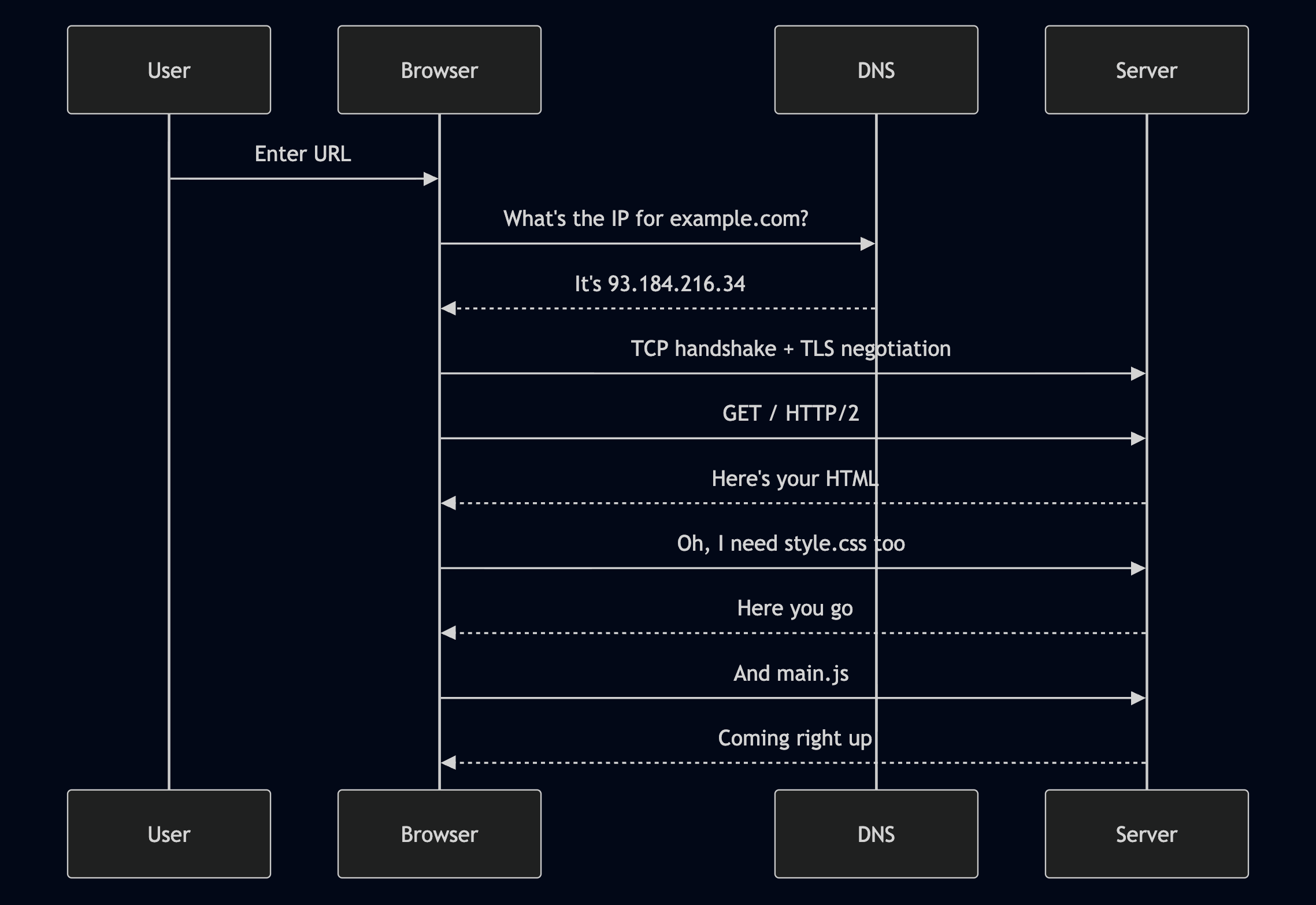
This is why waterfall charts in DevTools look the way they do. Every resource is a separate negotiation. HTTP/2 helps with multiplexing, but you're still doing DNS lookups, TCP connections, and TLS handshakes.
Here's what blew my mind: the networking layer handles caching, compression (gzip/brotli), redirects, CORS, and cookie management before the rendering engine even sees the HTML. It's doing a ton of work invisibly.
I've been optimizing bundle sizes for years without realizing that a poorly configured CDN or missing cache headers costs me way more than shaving 10KB off my JavaScript. Network is the bottleneck for most sites, not parsing.
From HTML Bytes to DOM Tree – Parsing Is Not Magic
Your HTML arrives as raw bytes over the network. The browser has to turn this:
<!DOCTYPE html>
<html>
  <body>
    <h1>Hello</h1>
    <p>World</p>
  </body>
</html>
Into this (the DOM tree):
The pipeline:
This happens incrementally. The browser doesn't wait for the entire HTML file. It starts building the DOM as bytes arrive. That's why you sometimes see pages render progressively, top to bottom.
The parser is also forgiving. You forget to close a <div>? The browser will close it for you. You nest things wrong? It'll do its best to fix it. This is why "view source" sometimes looks different from the DOM in DevTools—the browser normalized your mistakes.
Turns out I've been relying on this error correction my entire career. Writing perfect HTML is optional because browsers are absurdly tolerant. Not sure if that's a feature or a bug.
CSS Parsing and the CSSOM – DOM's Less Famous Sibling
While the DOM is being built, CSS is being parsed into the CSS Object Model (CSSOM).
Your CSS:
body { font-size: 16px; }
h1 { color: blue; }
Becomes a tree structure:
Here's the important bit: CSS blocks rendering. The browser won't show anything until it has both DOM and CSSOM. Why? Because it needs to know which styles apply to which elements before it can paint pixels.
This is why putting <link rel="stylesheet"> in the <head> delays rendering, but it's also why it's the right place for it. You don't want a flash of unstyled content.
JavaScript can also block here. If your <script> tag comes before CSS finishes loading, execution pauses. The browser doesn't want JS manipulating styles that haven't loaded yet.
I used to throw async and defer on scripts randomly. Now I get why timing matters—it's about the critical rendering path.
DOM + CSSOM = Render Tree – The Marriage That Makes Pixels Possible
The browser now has two trees: DOM (structure) and CSSOM (styles). It combines them into the Render Tree.
The Render Tree only includes visible elements. If you have display: none on something, it's in the DOM but not in the Render Tree. Same with <head> tags, <script> tags, and hidden elements.
Each node in the Render Tree is called a "render object" and has computed styles attached. No more cascading, no more inheritance resolution—just final values.
This is the structure the browser uses for layout and painting. Everything before this was preparation. Everything after is execution.
Quick mental check: if you're debugging why an element isn't showing up, ask yourself—is it in the DOM but not the Render Tree? Maybe it's display: none or visibility: hidden or has opacity: 0. Different problems, different fixes.
Layout (Reflow) – Calculating Where Every Pixel Goes
Now the browser knows what to render (Render Tree). Next question: where does everything go?
This is layout, also called reflow. The browser walks the Render Tree and calculates:
Exact position (x, y coordinates)
Exact size (width, height)
How elements affect each other (float, flexbox, grid)
This is expensive. If you change the width of a parent element, the browser has to recalculate layout for all its children. This is why reading offsetWidth or scrollTop in a loop kills performance—you're forcing repeated layouts.
I profiled a project last month and found 500ms spent in layout. The culprit? A scroll handler that read getBoundingClientRect() on every frame. Each read triggered a synchronous layout. Batching those reads dropped it to 20ms. Same code, different order of operations.
The lesson: layout is not free. Minimize geometry changes, batch DOM reads, and use transform for animations (more on that in a second).
Paint – Turning Geometry Into Pixels
Layout gives you geometry. Paint turns that into actual pixels.
The browser walks the Render Tree again and draws:
Backgrounds
Borders
Text
Shadows
Images
Painting happens in layers. Elements with z-index, opacity, or transform often get their own layer. The browser paints each layer separately, then composites them together.
This is why transform and opacity animations are smooth—they skip layout and sometimes even skip paint. They only trigger composite, which is GPU-accelerated.
I've been using transform: translateX() for years because "it's faster," but I never knew why until now. It bypasses CPU-heavy layout and paint entirely. The GPU just moves an existing layer. Boom, 60fps.
Composite – Sending Layers to the GPU
The final step is composite. The browser takes all painted layers and sends them to the GPU for final assembly. This whole process—from layout through paint to composite—is handled by the rendering engine (Blink, WebKit, or Gecko).
Here's what I found digging into this on my own: the rendering engine doesn't just parse HTML and CSS. It owns the entire visual pipeline. It calculates layout, paints pixels, manages layers, and coordinates with the GPU compositor to get everything on screen.
This is where will-change and transform3d(0,0,0) hacks come in. They hint to the rendering engine: "this element will animate, give it its own layer." The engine promotes it to a GPU layer upfront, so animations don't trigger expensive paint operations.
But there's a catch—too many layers eat memory. Create 1000 layers and you'll blow your RAM budget. Everything is a tradeoff.
Here's what I learned the hard way: compositing is fast, but creating layers is not. If you animate 100 elements and each gets its own layer on every frame, you're thrashing the compositor. Better to animate transforms on a single parent.
Parsing 101 – Why Browsers Turn Text Into Trees
Let's zoom out for a second. Why does the browser build trees at all? Why not just... read HTML top to bottom and paint?
Because parsing turns flat text into structured meaning.
Simple example. You have this math expression:
2 + 3 * 4
As a human, you know multiplication happens first. The result is 14, not 20. How does a computer know that?
It parses it into a tree:
Now the structure is explicit. Evaluate the * subtree first (3 × 4 = 12), then the + (2 + 12 = 14).
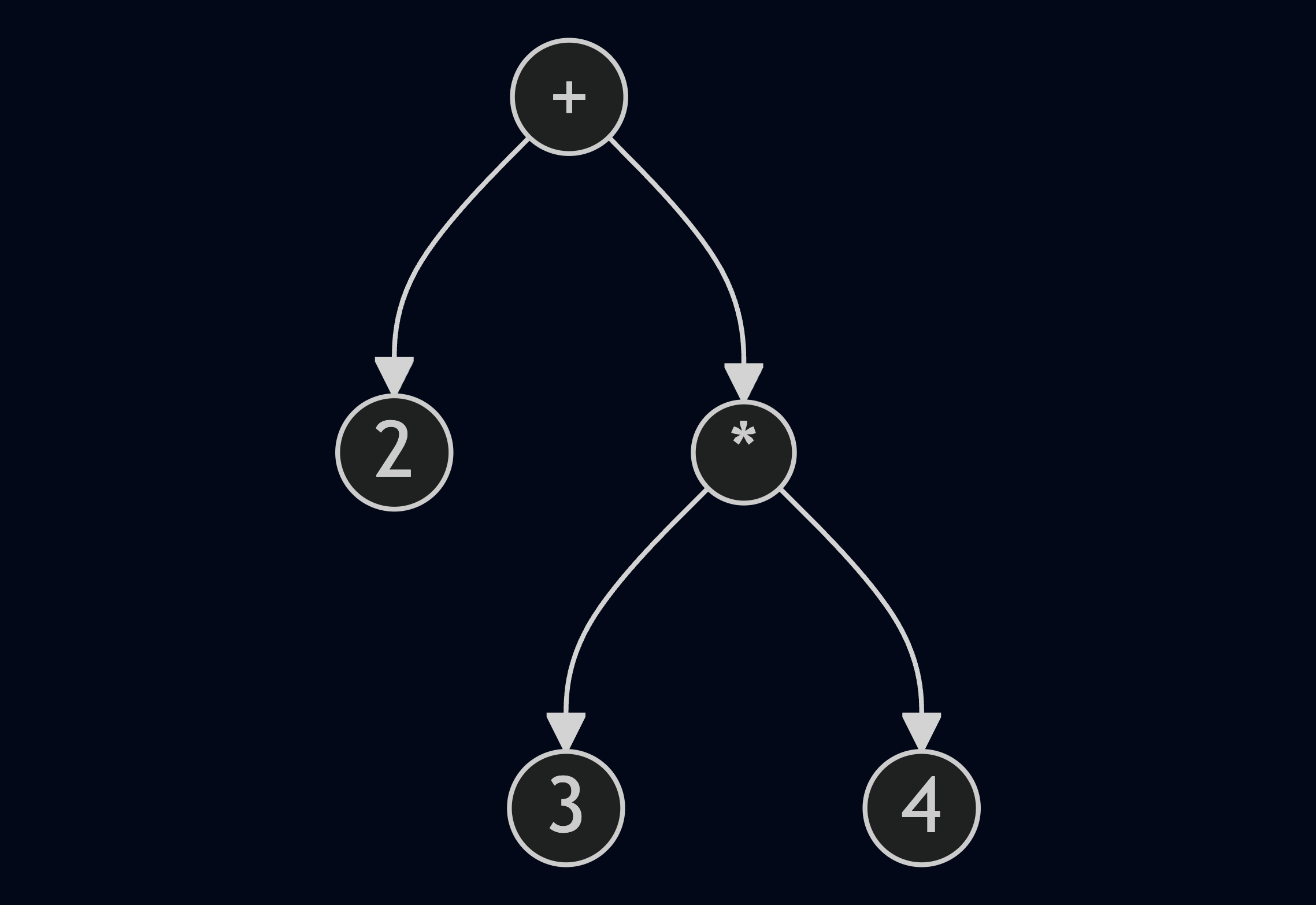
HTML works the same way. Nesting and relationships matter. The browser can't apply styles correctly unless it knows <p> is a child of <body>, which is a child of <html>. Trees make that explicit.
This is why malformed HTML breaks layout—the parser can't build a correct tree, so the Render Tree is wrong, so layout is wrong, so your page looks broken.
I used to think parsing was some academic CS thing. Turns out it's literally how every browser, compiler, and interpreter works. Once you see it, you see it everywhere.
The Full Pipeline – From URL to Pixels
Here's the complete flow, start to finish:
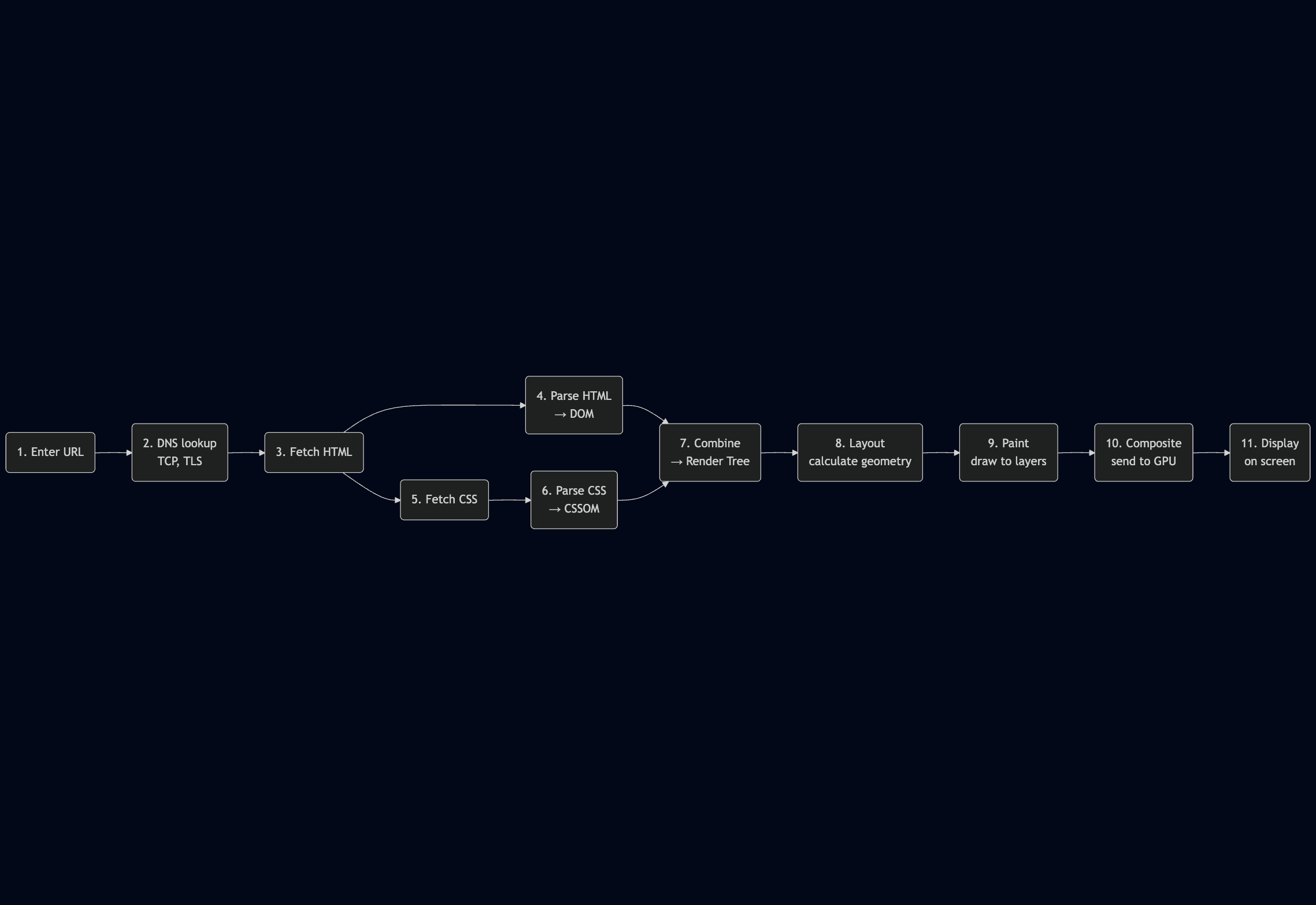
Every optimization you've heard of plugs into this pipeline:
Critical CSS → Speeds up CSSOM
Code splitting → Reduces HTML/JS parse time
Image lazy loading → Defers network requests
transformanimations → Skips layout and paintService workers → Caches network responses
Understanding the pipeline means you're not just following best practices blindly—you know why they work.
These insights from studying browser internals continue to shape how I debug performance issues. If you're in web development, it's worth digging deeper—or at least bookmarking this for your next "why is my site slow" moment.